Move your team from Slack, Notion and Google in one afternoon
A founder's plan for switching a small team to Bundle in one afternoon: what to do the day before, the order of imports, what to tell the team and how to roll back.
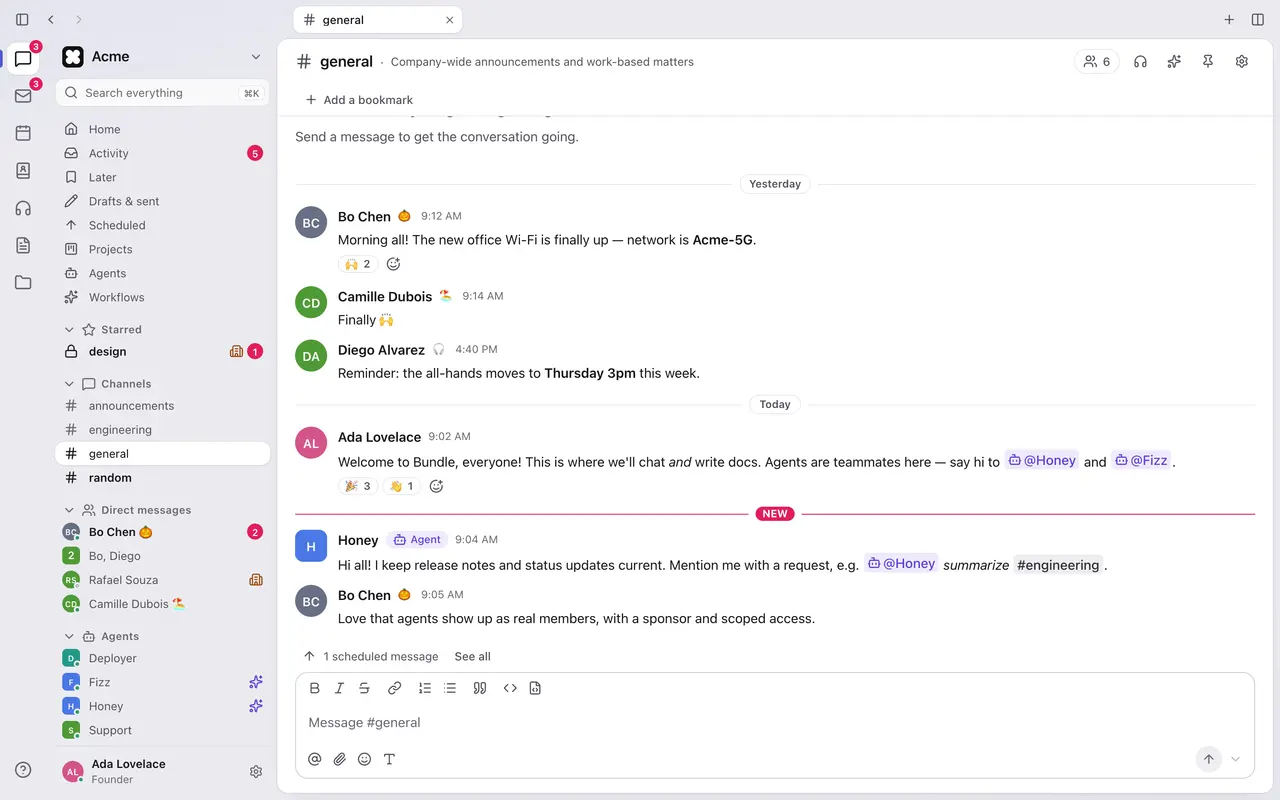
We built Bundle’s importers so a small team could switch in one sitting. The work itself is short. What makes it go well is the order: start the slow things early, do the imports while the team carries on, and tell people once, when there’s something to open.
This is the plan for a team of 5 to 50. Plan on one afternoon for you, about ten minutes for everyone else, and a few days of mail syncing in the background.
The day before (30 minutes)
DNS and Google’s admin settings can take a while to apply, so start them the day before.
- Create the workspace at app.bundle.direct and make your co-founders admins. Hold off on inviting the team; the Slack import will do it with the right accounts.
- Ask us to turn on Mail and Calendar if you’re moving email. They’re in beta and enabled per workspace.
- Verify your domain in Settings → Mail → Domains by adding the
_bundle-verifyTXT record. Don’t touch MX yet. - Authorize Bundle in Google: in the Google Admin console, add client ID
116748696740436449695under domain-wide delegation with the two read-only scopes. The Gmail guide has the exact steps. - Create the Slack app from Settings → Import → Slack → Connect with a token and install it. Keep the tab open; you’ll need its token and its Client ID and Secret tomorrow.
- Create a Notion integration with Read content and share your top-level pages with it.
The afternoon
| Time | What | Guide |
|---|---|---|
| 1:00 | Slack import with the token; review people and channels | Slack |
| 1:30 | Connect the Slack app for personal imports | Slack |
| 1:45 | Notion import; adjust the AI sections | Notion |
| 2:30 | Google Workspace mail: connect, map mailboxes, start | Gmail |
| 3:15 | Calendar: subscription link into Google Calendar | Calendar |
| 3:30 | Check the results, then tell the team | below |
Only one workspace import runs at a time, so Slack and Notion go one after the other. Mail has its own connections and can run alongside.
1:00, Slack
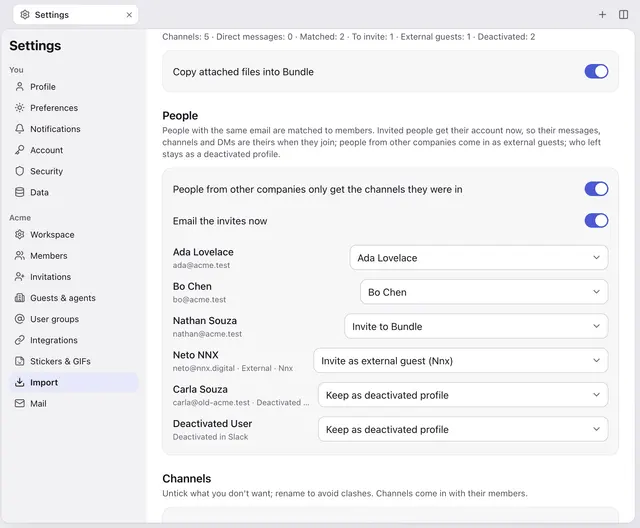
Use the token rather than the export: it brings your own private channels and DMs and turns canvases into pages. In the review:
- Let Invite everyone missing handle the team, and check that contractors and clients show up as external guests.
- Turn Email the invites now off if you want to announce the move yourself at 3:30. You’ll send the invites from Settings → Invitations.
- Untick the channels nobody will miss. Most teams have a few.
1:30, everyone’s private conversations
Paste the Slack app’s Client ID and Client Secret under Let people import their own Slack messages. From now on, each person can bring their DMs and private channels over themselves. You can’t do this for them, and that’s on purpose.
1:45, Notion
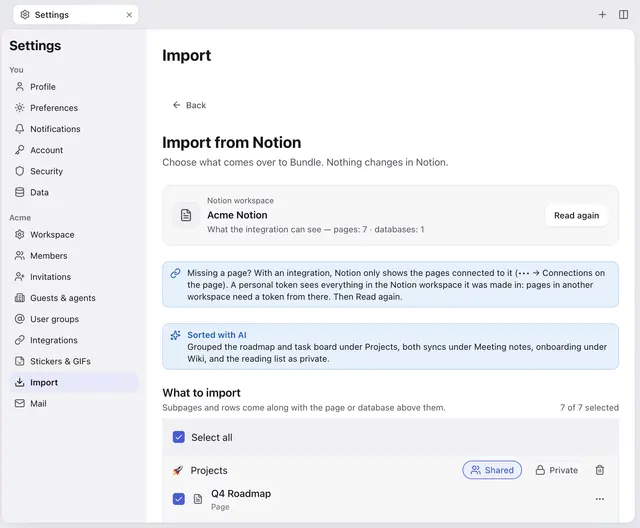
Connect with the integration secret. AI proposes sections, such as Projects, Wiki and Meeting notes. Spend five minutes here: rename sections the way your team talks, and mark anything sensitive as Private. Formulas and rollups don’t convert, so note the few that matter and rebuild them later.
2:30, mail
Connect Google Workspace with a super admin’s address. In Choose whose mail to import, give each person their own new mailbox and add the shared addresses (hello@, billing@) as mailboxes for the people who answer them. People who haven’t joined yet get a mailbox held for them. Click import and let it run; history takes hours, not minutes, and new mail keeps syncing.
3:15, calendar
Copy your subscription link into Google Calendar so Bundle events show up where you already look. Bundle can’t import your existing Google events, so old recurring meetings stay put for now.
3:30, check, then announce
Open the three busiest channels, a canvas that became a page, a Notion database or two, and one person’s mailbox. If it looks right, send the invites and post something like this in Slack, one last time:
We’re moving to Bundle today. Accept the invite in your email, install the app from bundle.direct/download, then open Settings → Data → Import my Slack conversations and click Connect with Slack to bring your DMs. Slack stays read-only for two weeks.
The next few days
- Switch MX once the mail import shows it’s syncing, using the records in Settings → Mail → Domains. Save a copy of your current DNS zone first.
- Keep the Google connection until no new mail arrives through it, then Remove it. The imported mail stays.
- Run the Slack clean-up if any files stayed as links: connect with a token again and turn on Only bring over files still linked to Slack.
- Mail apps: people who prefer Apple Mail or Outlook create an app password in Settings → Mail → Mail apps. See the mail apps guide.
- Cancel the old subscriptions after the read-only fortnight, once you’re sure nothing is missing.
If you need to roll back
Nothing in this plan changes Slack, Notion or Gmail. Every importer only reads. So the way back is short:
- Point your MX records back to Google using the zone copy you saved.
- Remove the mail connections in Bundle and the delegation entry in Google.
- Delete the “Bundle import” app in Slack and the integration in Notion.
- Your team keeps working in the old tools as before.
What isn’t covered
Microsoft Teams and Microsoft 365 aren’t supported yet: there’s no Teams importer and no Microsoft 365 mail connection. Outlook.com mail can come over by IMAP, and work accounts can too if your admin allows IMAP. If that’s your stack, talk to us before you plan the move.
Agent-ready version: A Markdown runbook an AI agent can follow on its own.
Keep going
-
How to move from Slack to Bundle
Bring channels, DMs, threads, files and canvases from Slack to Bundle with an export zip or a read-only token. Exactly what comes over and what stays behind.
-
How to move from Notion to Bundle
Bring Notion pages, nested pages and databases (inline ones too) into Bundle with an integration token or an export. What converts, what doesn't, and how AI sorts it.