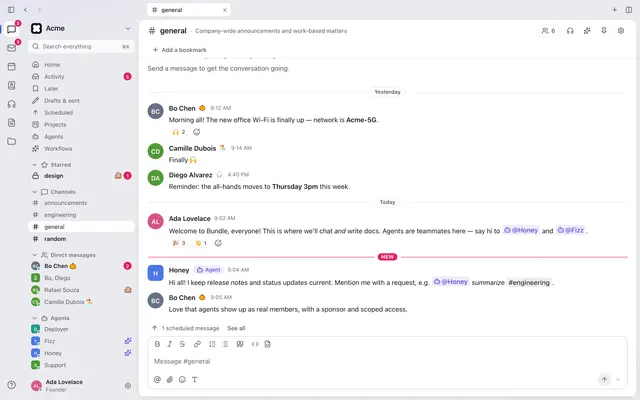
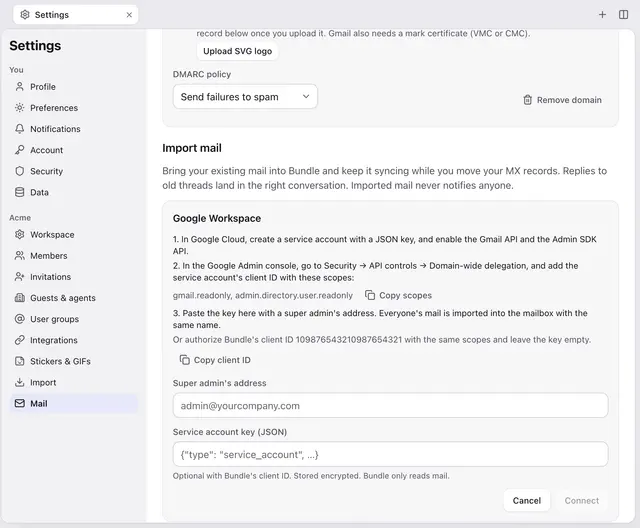
Bring your calendar: Bundle in Apple Calendar, Google Calendar and your phone
Show your Bundle calendar on iPhone, Mac, Android and Google Calendar with a subscription link, CalDAV or phone sync. And what to do with your old calendar.
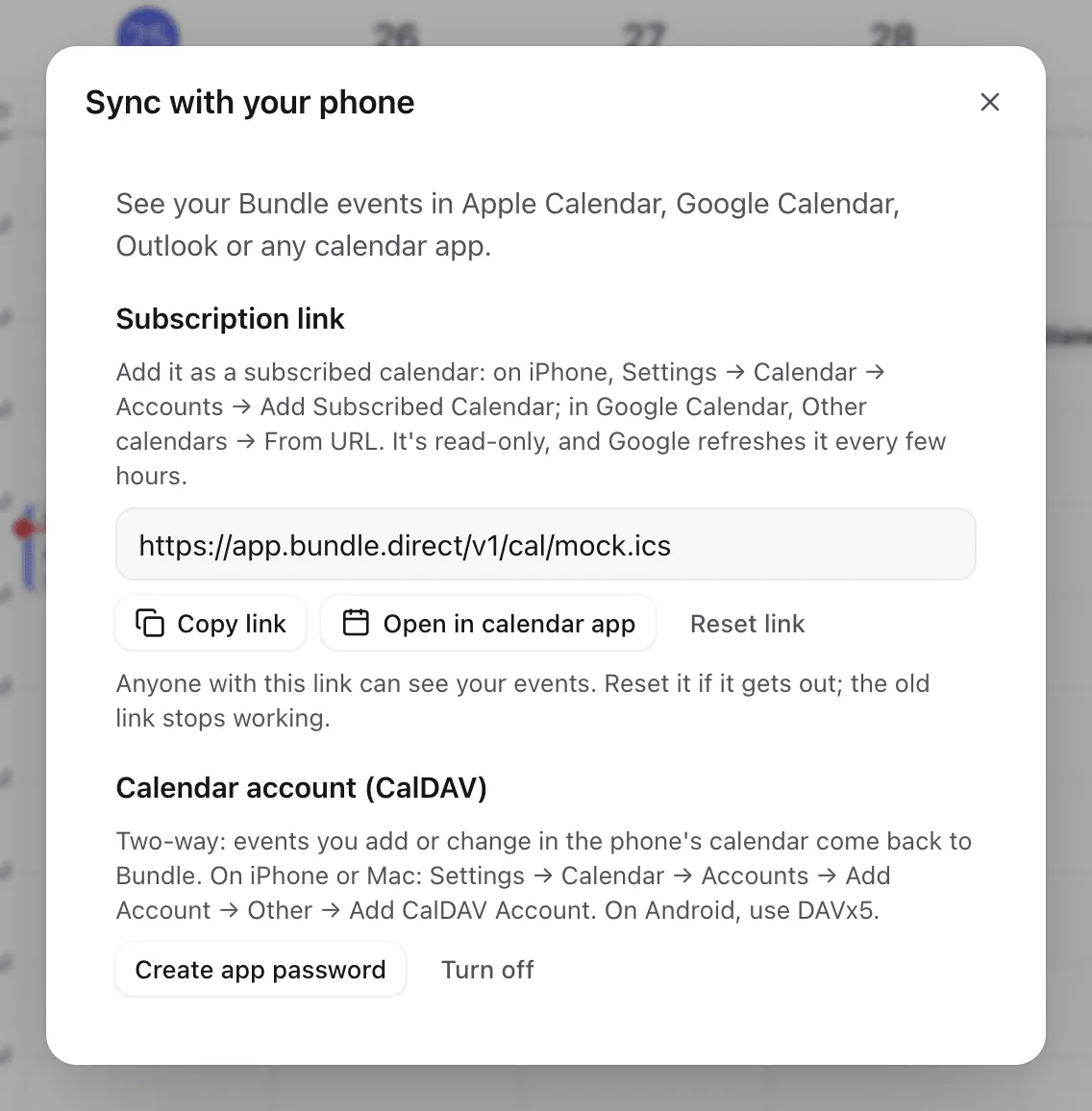
Bundle has a calendar built in, next to chat and mail: day, week and month views, repeating events, RSVPs, outside guests invited by email, and a Meet link on any event. This guide covers getting it onto the calendars you already look at: your phone, your Mac and Google Calendar.
Let’s get one thing out of the way first. Bundle can’t import events from Google Calendar or .ics files yet. Your Bundle calendar can show up in other apps, but not the other way round. So for a while most teams run both: new meetings go in Bundle, and the old calendar keeps the history and the recurring meetings until they end. The subscription link below makes that overlap painless.
Calendar is in beta and turned on workspace by workspace. Guests (restricted members) and agents don’t have a calendar.
Three ways to sync
| Subscription link | CalDAV account | Phone sync (Bundle app) | |
|---|---|---|---|
| Works in | Google Calendar, Apple Calendar, Outlook, any app that subscribes to .ics |
Apple Calendar on iPhone and Mac, DAVx5 on Android, Thunderbird | iPhone and Android calendars |
| Direction | Read-only | Two-way | Two-way |
| Set up in | Calendar → Sync with your phone | Calendar → Sync with your phone | Bundle app → Settings → Calendar |
All three are personal: you see the events you organize or were invited to, plus workspace-wide events you answered.
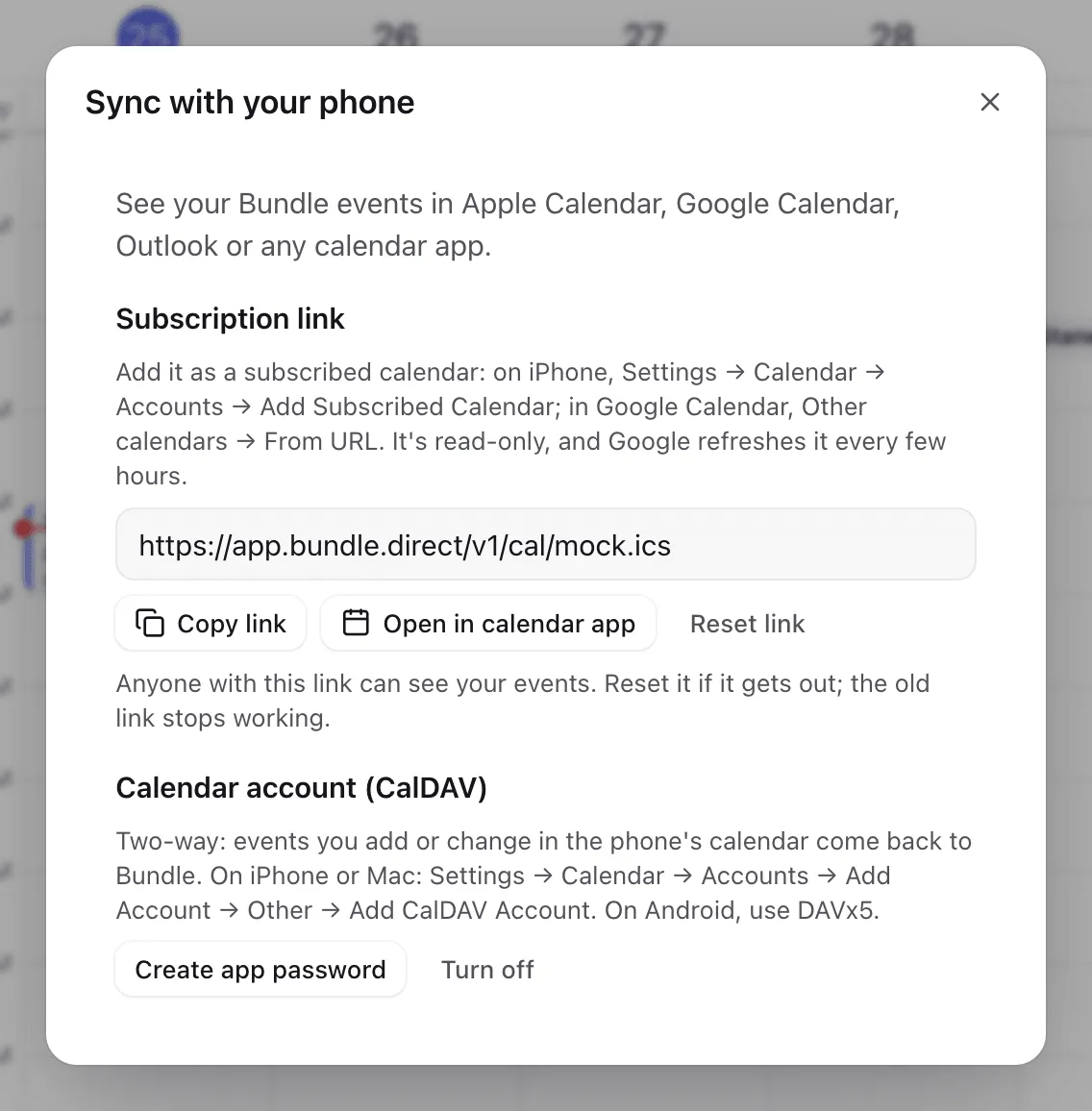
The subscription link (read-only)
This is the quickest way to see Bundle events inside Google Calendar during the switch.
- In Bundle on the web, open Calendar and click the link icon in the header (Sync with your phone).
- Under Subscription link, click Copy link.
- Google Calendar: in the left sidebar, Other calendars → + → From URL, paste, and add.
- iPhone: Settings → Apps → Calendar → Calendar Accounts → Add Account → Add Other Account → Add Subscribed Calendar, paste, and save. On a Mac, Open in calendar app does it in one click.
It’s read-only, and Google refreshes subscribed calendars every few hours, so changes show up with a delay there. Anyone with the link can see your events. If it gets out, click Reset link; the old one stops working at once.
CalDAV (two-way, iPhone and Mac)
With CalDAV, events you add or change in Apple Calendar go back to Bundle.
- In Calendar → Sync with your phone, under Calendar account (CalDAV), click Create app password and copy it. It’s shown once.
- iPhone: Settings → Apps → Calendar → Calendar Accounts → Add Account → Add Other Account → CalDAV Account. Mac: System Settings → Internet Accounts → Add Other Account → CalDAV Account.
- Server:
app.bundle.direct. User name: the email you sign in to Bundle with. Password: the app password. - Android: use DAVx5 with the same details.
Mail apps take the same kind of app password. Make one per device: a new one never stops the others. If you already installed the iPhone and Mac profile from Settings → Mail → Mail apps, your calendar is already set up.
The rules match Bundle’s: only the organizer can change an event, and deleting an invitation in your phone’s calendar declines it. Turn off deletes the password, which also stops mail apps.
Phone sync in the Bundle app
The Bundle apps can sync straight into your phone’s calendar, two-way, without passwords.
- Android: in the Bundle app, Settings → Calendar → Sync with phone calendar. A “Bundle — your workspace” calendar appears in Google Calendar and other calendar apps on the phone. It syncs when you open the app, when events change, and hourly.
- iPhone: in the Bundle app, Settings → Calendar → Sync with iPhone Calendar, and allow full calendar access when iOS asks.
Turning it off, or signing out, removes the calendar from the phone.
Inviting people outside Bundle
When you create an event, pick a mailbox in Send invitations from and outside guests get a normal calendar invite by email. When they answer in Gmail, Outlook or Apple Calendar, their reply updates the RSVP in Bundle. Changes and cancellations send updated invites, including for a single occurrence of a repeating event.
A switching plan that works
- Turn on the subscription link in Google Calendar on day one, so people see Bundle events where they already look.
- Create new meetings in Bundle from then on. Invite outside guests from your mailbox.
- Leave old recurring meetings where they are until they end or come up for a change, then recreate them in Bundle.
- Once your calendar life is mostly in Bundle, move everyone to CalDAV or phone sync and drop the subscription.
Agent-ready version: A Markdown runbook an AI agent can follow on its own.
Keep going
-
Move your team from Slack, Notion and Google in one afternoon
A founder's plan for switching a small team to Bundle in one afternoon: what to do the day before, the order of imports, what to tell the team and how to roll back.
-
How to move Gmail and Google Workspace mail to Bundle
Import every mailbox from Google Workspace into Bundle Mail, keep new mail syncing while you switch MX records, or bring any account over IMAP.