How to move from Slack to Bundle
Bring channels, DMs, threads, files and canvases from Slack to Bundle with an export zip or a read-only token. Exactly what comes over and what stays behind.
You can move a Slack workspace to Bundle in an afternoon. An owner or admin runs the import from Settings → Import, reviews who each Slack person becomes, picks the channels, and Bundle writes everything with the original timestamps. Then each person can bring over their own private conversations with one click on Connect with Slack.
Nothing changes in Slack while this runs. The importer only reads, so you can keep both open during the switch and run it again later.
The short version:
- Two ways in: the Slack export
.zip(up to 1 GB) or a user token from our read-only “Bundle import” Slack app. - The token is the better path for most teams: it also reads private channels and DMs that the token’s owner can see, and it turns canvases into Bundle pages.
- Private conversations belong to each person. Once an admin connects the Slack app, everyone imports their own DMs, group DMs and private channels from Settings → Data.
- What stays in Slack: pins, bookmarks, custom emoji images, user groups, workflows, huddles, Lists and scheduled messages.
Before you start
You need to be an owner or admin in Bundle. Guests and agents can’t run imports, and only one workspace import runs at a time.
Decide which source to use:
Export .zip |
Token (“Bundle import” app) | |
|---|---|---|
| Public channels | Yes | Yes |
| Private channels, DMs, group DMs | Only if your Slack plan’s export includes them | Those the token’s owner is in |
| Canvases become pages | No, they stay links (fixable later) | Yes |
| Files | Copied when downloadable | Copied when downloadable |
| Size limit | 1 GB zip | None for the source; files over 1 GB stay links |
Slack’s Free and Pro plans export public channels only. Bundle accepts that export and tells you so on the review screen. If you want private channels and DMs, use the token.
Option A: import the Slack export
- In Slack, open Workspace settings → Import/Export data → Export.
- Pick the date range. Choose Entire history to bring everything, start the export and wait for Slack’s email.
- In Bundle, open Settings → Import, choose Slack, then Export file.
- Drop the
.zipon the page. Bundle reads it and opens the review.
The zip must contain users.json and channels.json (Enterprise Grid exports use org_users.json). If your export also has groups.json, mpims.json and dms.json, private channels, group DMs and DMs come over too.
Option B: connect with a token
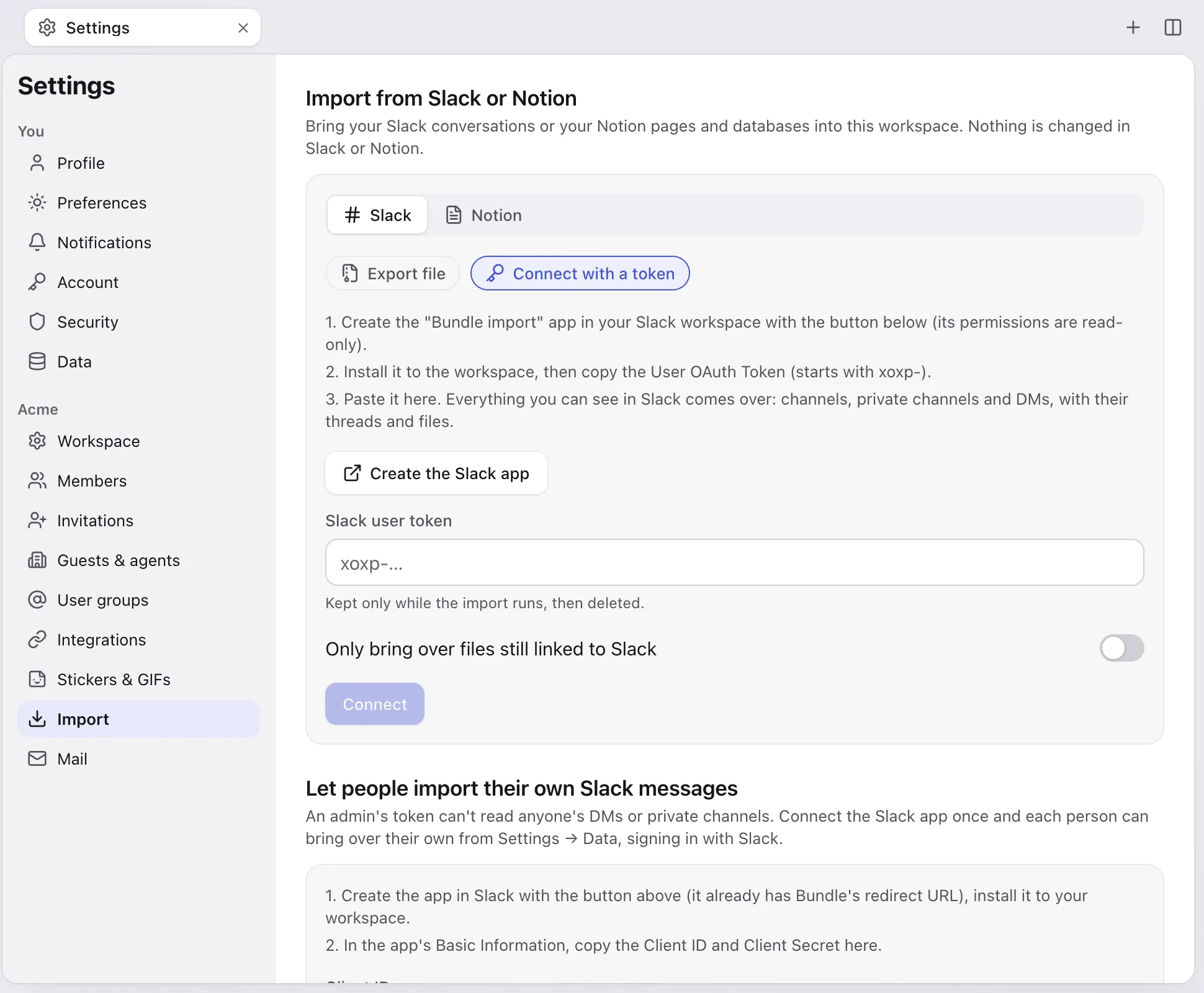
- In Settings → Import → Slack, choose Connect with a token.
- Click Create the Slack app. Slack opens with the “Bundle import” app already filled in. Its permissions are all read-only (history and lists of channels, private channels, DMs and group DMs, users and their emails, files, team info).
- Install the app to your Slack workspace and copy the User OAuth Token. It starts with
xoxp-. - Paste it in Slack user token and click Connect.
The token can only see what its owner sees in Slack: every public channel plus that person’s own private channels, DMs and group DMs, archived ones included. It’s kept only while the import runs and deleted when the job finishes, fails or is stopped.
An admin’s token can’t read other people’s DMs. That’s a Slack rule, not ours. The section Everyone’s private conversations below covers how each person brings their own.
Review before anything is written
Bundle reads the source first and shows you a review. Nothing is created until you click Import, and a review left alone expires after 7 days.
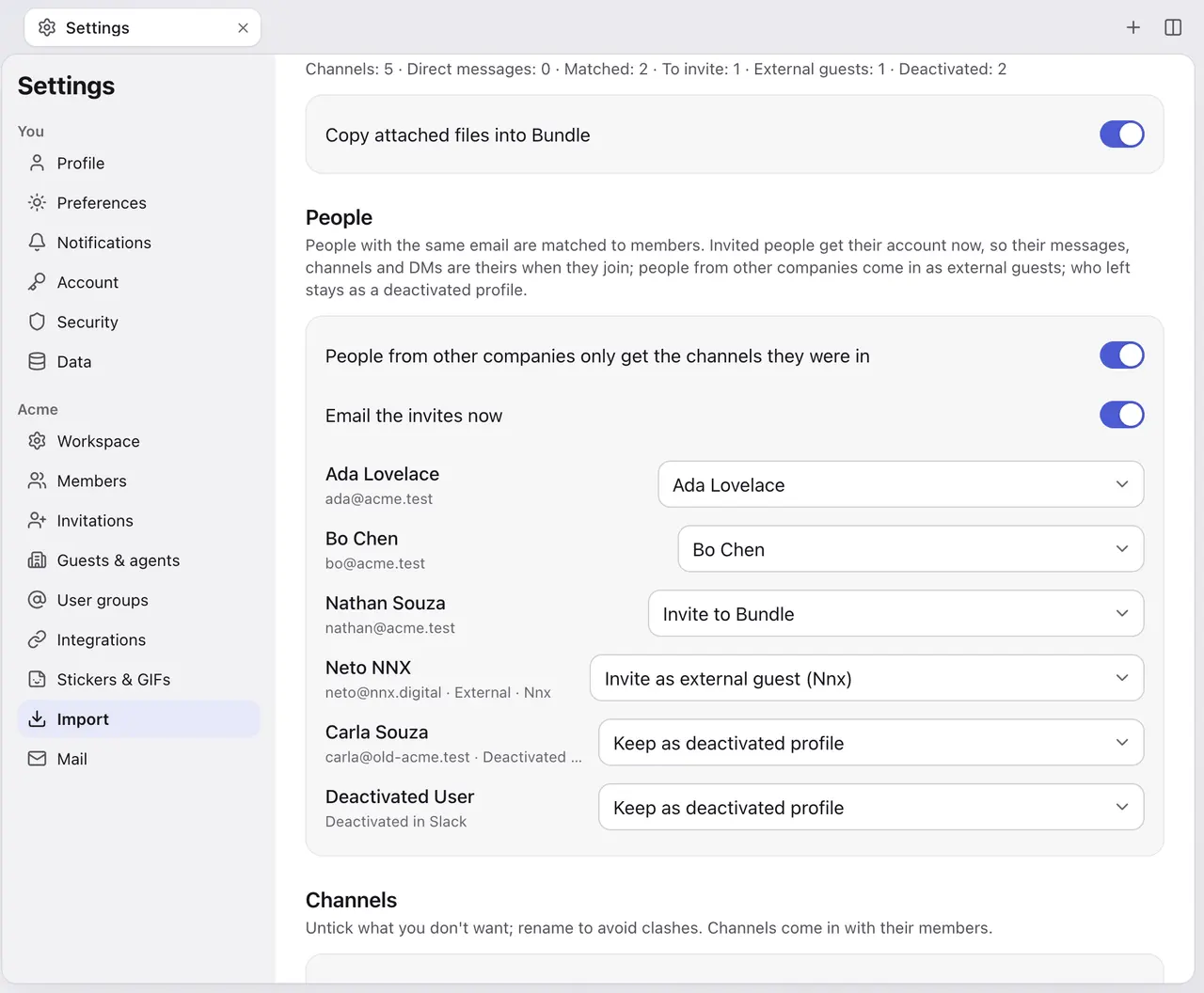
People. Each Slack person gets a suggestion, and you can change any of them:
- An existing member, matched by email.
- Invite to Bundle for teammates who aren’t here yet.
- Invite as external guest for people from other companies (Slack guests, members of another Slack team, or an email domain that isn’t yours). Guests only get the channels they were in, with an “External” badge.
- Keep as deactivated profile for people who left.
- Keep as name only for bots and people without an email. Their messages keep their name and Slack avatar.
Invite everyone missing fills in the rest in one go. Email the invites now is on by default; turn it off if you’d rather announce the move first. Accounts and pending invites are still created, and you can send them later from Settings → Invitations.
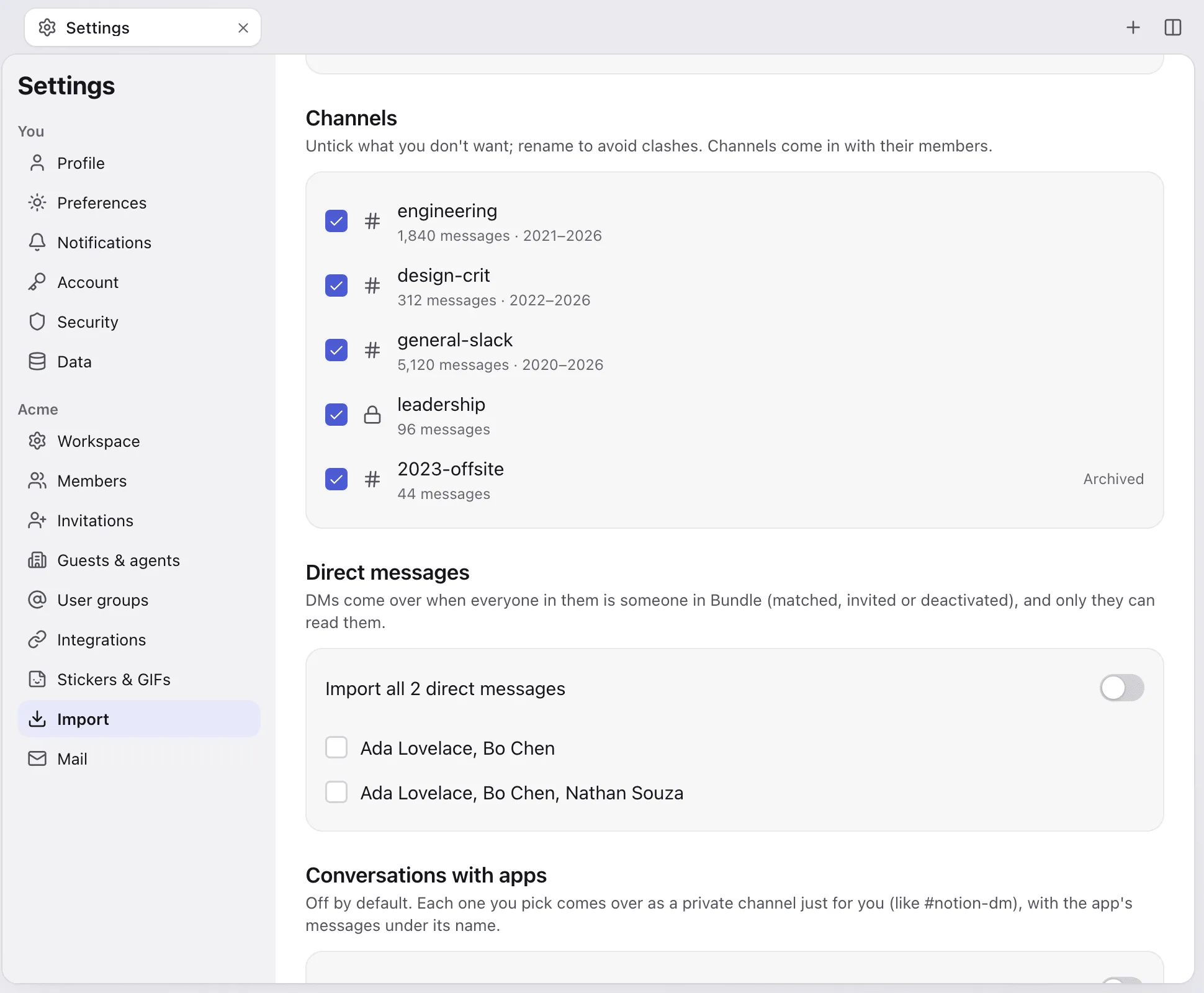
Channels. Every channel is ticked, archived ones included, and you can rename any of them. If a channel with the same name already has messages in Bundle, the import becomes name-slack. If the existing one is empty, they merge.
Direct messages are off by default. A DM or group DM only comes over when everyone in it maps to someone in Bundle (a member, an invite, a guest or a deactivated profile).
Conversations with apps are off by default too. Each one you pick becomes a private channel for that person.
Copy attached files into Bundle is on by default. Turn it off and messages link to the Slack originals instead.
What comes over, and what doesn’t
| Comes over | Stays in Slack |
|---|---|
| Public and private channels, with topic, purpose, members and archived state | Pins and bookmarks |
| DMs and group DMs (when everyone maps to someone in Bundle) | Custom emoji images (:name: stays as text) |
| Threads, including replies also sent to the channel | User groups (@group mentions become plain text) |
| Original timestamps; messages arrive as read and notify nobody | Workflows, apps and integrations as configuration |
| The latest version of edited messages | Edit history |
| Reactions from people who map to someone in Bundle | Reactions from people you didn’t bring over |
| Mentions of people and channels | Huddles, Lists, scheduled messages, sidebar sections, saved items |
| Files, copied when Slack lets us download them | Join/leave notices, topic changes, pin notices |
| Canvases and posts, as Bundle pages (token imports) | Link previews (Bundle makes its own) |
| Bot and workflow messages, under the bot’s name and icon |
Avatars come over for people you invite or keep as profiles.
Everyone’s private conversations
Slack’s own migration tools work the same way: each person brings their own private conversations, because nobody else’s token can read them.
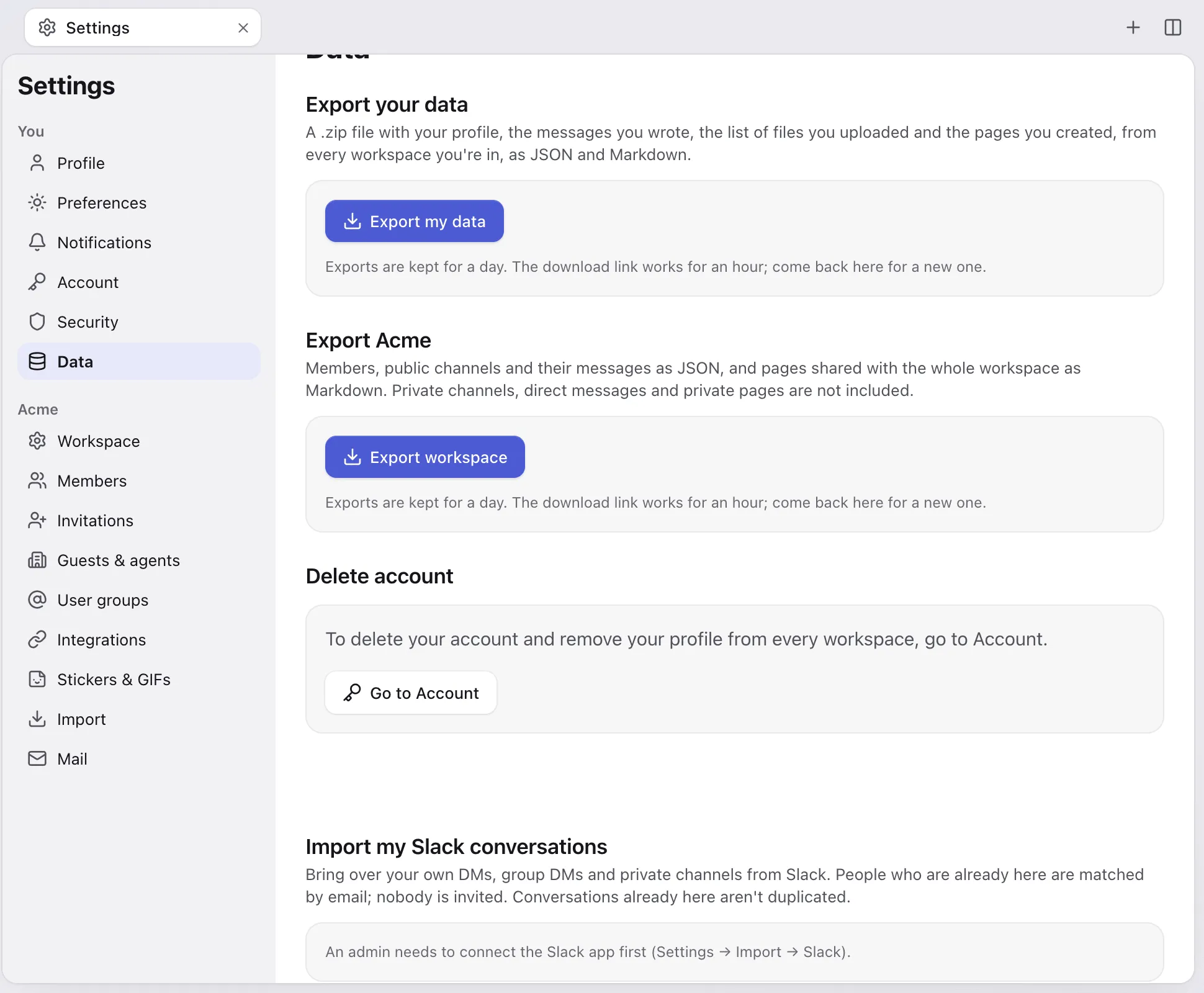
Once, an admin connects the app:
- In Settings → Import → Slack → Connect with a token, find Let people import their own Slack messages.
- Create the app with the button there. It already has Bundle’s redirect address. Install it to your Slack workspace.
- In the app’s Basic Information page in Slack, copy the Client ID and Client Secret into Bundle and click Connect the app.
Then each person:
- Opens Settings → Data → Import my Slack conversations and clicks Connect with Slack.
- Signs in to Slack and allows access. Nobody pastes a token.
- Picks which DMs, group DMs and private channels come over (all are ticked) and starts the import.
People are matched by email, and nobody is invited or created. A DM comes over only when everyone in it is already in Bundle, and it merges into the DM you already have with those people. A private channel merges into one with the same name you’re in. A message that’s already there isn’t written twice, so two people importing the same DM is fine.
Files, canvases and Google Drive links
Files attached in Slack are copied into Bundle when Slack lets us download them. Files over 1 GB stay as links to Slack.
Files that Slack only links to, such as Google Drive documents, are never downloaded. The message keeps a link with the file’s name, and the final clean-up step points it at the original Drive address. Bundle doesn’t connect to Google Drive, so access stays with Drive’s own sharing settings.
Canvases become Bundle pages on token imports. Canvases from public channels go under one shared page; canvases from private channels and DMs become private pages shared with that conversation’s members.
If you imported from a zip, or some files didn’t make it, run the clean-up later: connect with a token again and turn on Only bring over files still linked to Slack. Nothing new is imported. Messages already in Bundle that still link to Slack get their files, canvases become pages, and the timeline says why anything couldn’t come over (not found, no access, bigger than 1 GB).
While it runs
The import works in the background in short slices and logs each step on its timeline in Settings → Import. Slack’s rate limits set the pace, so a large workspace takes a while; you can keep working. Stop import halts it, and whatever was already imported stays.
After the import, check a few busy channels and DMs, then tell the team where to find their private conversations button. That’s the whole move.
Agent-ready version: A Markdown runbook an AI agent can follow on its own.
Keep going
-
Move your team from Slack, Notion and Google in one afternoon
A founder's plan for switching a small team to Bundle in one afternoon: what to do the day before, the order of imports, what to tell the team and how to roll back.
-
How to move from Notion to Bundle
Bring Notion pages, nested pages and databases (inline ones too) into Bundle with an integration token or an export. What converts, what doesn't, and how AI sorts it.