How to move from Notion to Bundle
Bring Notion pages, nested pages and databases (inline ones too) into Bundle with an integration token or an export. What converts, what doesn't, and how AI sorts it.
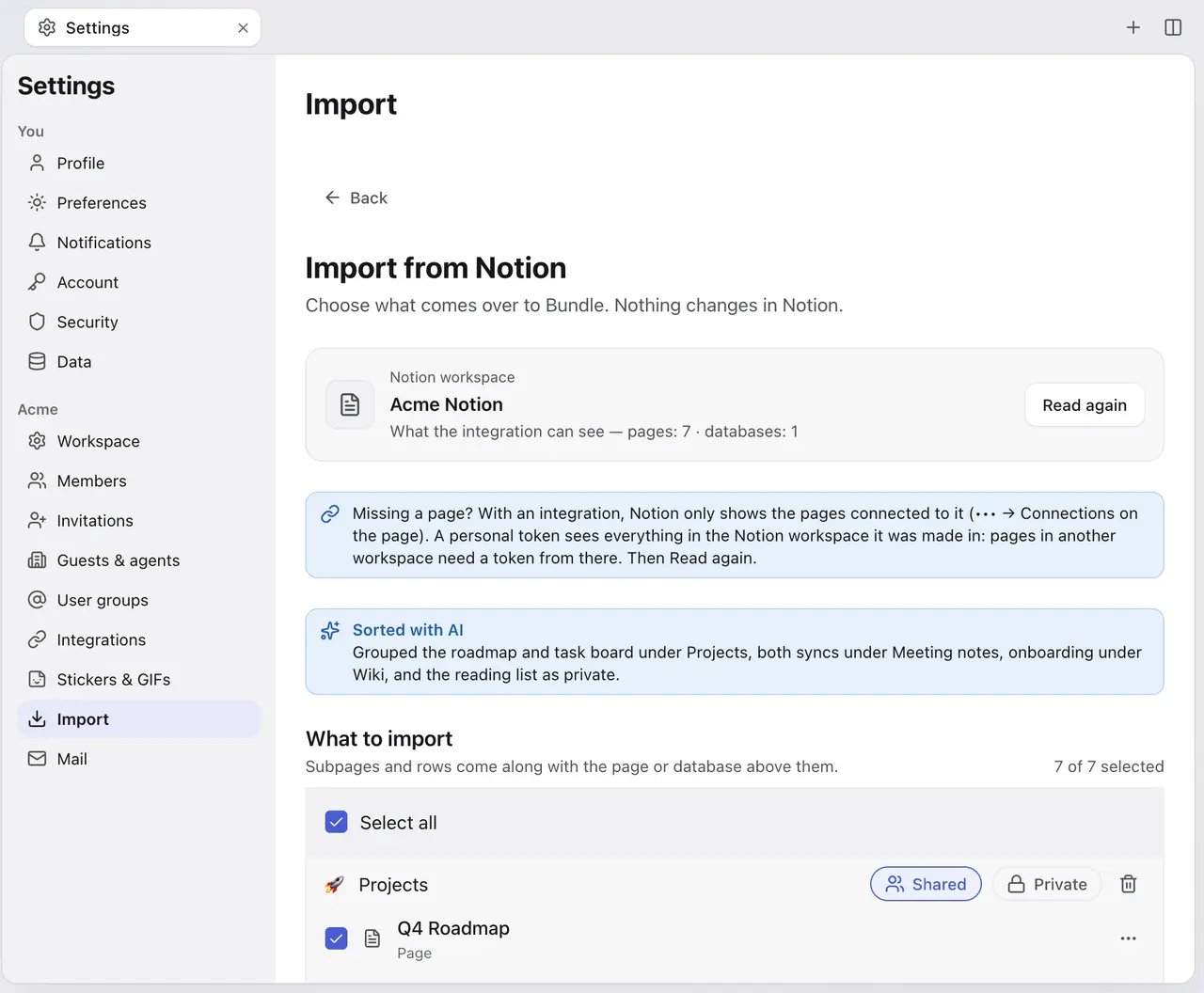
Your Notion workspace can live next to your chat in Bundle. An owner or admin connects Notion from Settings → Import, Bundle reads the pages and databases, suggests a tidy set of sections, and you choose what comes over. Notion isn’t changed, so nothing breaks for people still using it.
The short version:
- Two ways in: a Notion internal integration (recommended, it keeps database property types) or the “Markdown & CSV” export zip (up to 1 GB, split exports work).
- Pages, nested pages and databases come over, including databases inline on a page, with their rows and the text inside each row.
- AI sorting groups your top-level pages into 2 to 8 sections and suggests a first view for each database. You can change all of it before importing.
- Formulas and rollups don’t convert to live formulas, and comments stay in Notion. Details below.
Option A: connect a Notion integration
This is the better path. Bundle reads Notion’s own data types, so a select stays a select and a date stays a date.
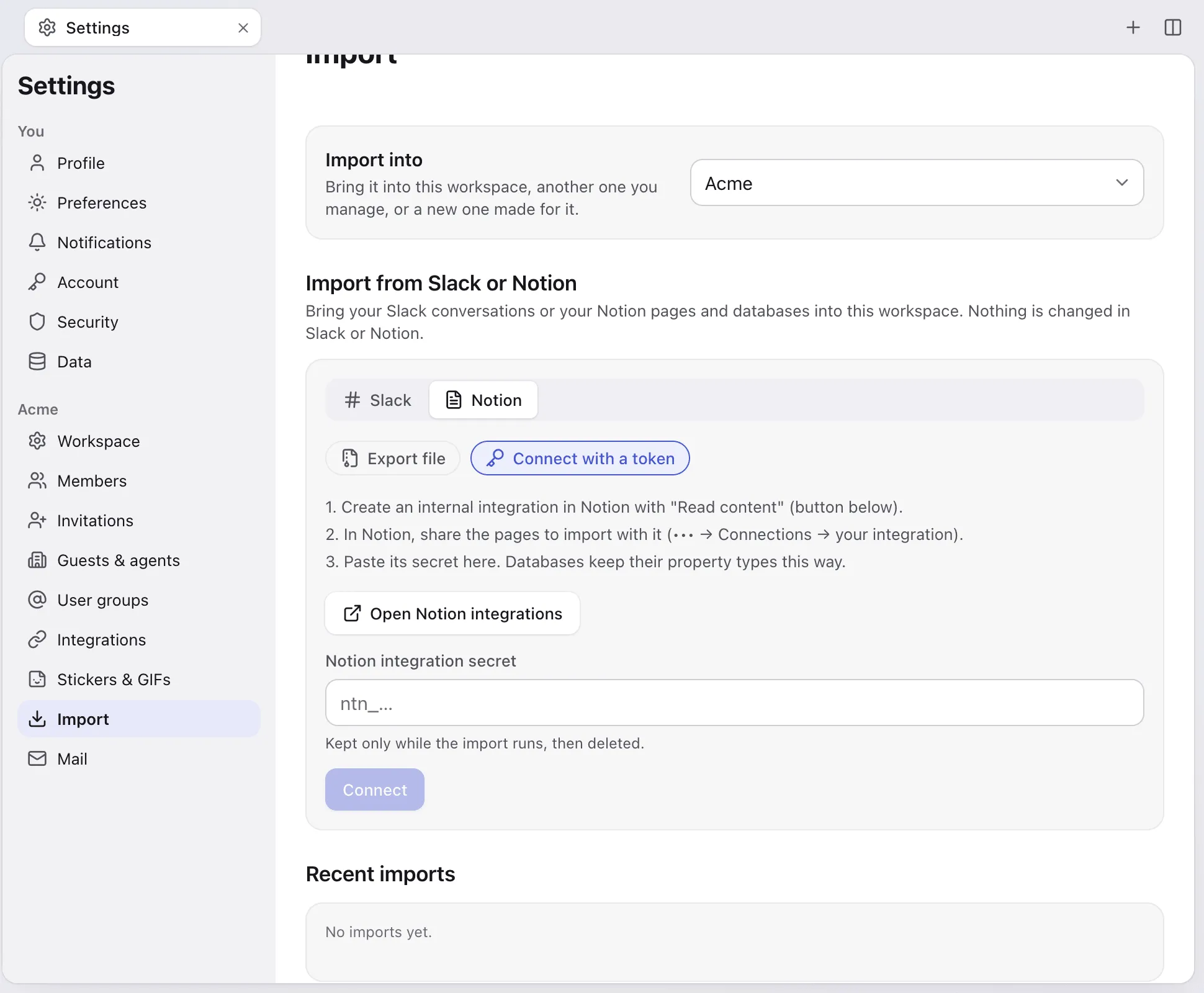
- In Settings → Import, choose Notion, then Connect with a token.
- Click Open Notion integrations. In Notion, create an internal integration with the Read content capability. That’s the only capability it needs.
- Share the pages you want with it: on each top-level page in Notion, open ••• → Connections and add your integration. Subpages and the databases inside come along.
- Copy the integration’s secret (it starts with
ntn_), paste it in Notion integration secret and click Connect.
If Bundle says the integration can’t see any page, step 3 didn’t take: the integration only sees pages that were shared with it.
The secret is kept only while the import runs, then deleted.
Option B: import the Notion export
- In Notion, open Settings → General → Export all workspace content.
- Choose Markdown & CSV, include subpages and files, and export.
- In Bundle, open Settings → Import → Notion → Export file and drop the zip.
Bundle reads the .md pages and .csv databases inside. HTML exports don’t work. For big workspaces Notion’s download holds several Part-1.zip, Part-2.zip files; drop that download as it is, as long as it’s under 1 GB.
With an export, Bundle has to guess each database column’s type from the values in the CSV (checkbox, number, date, URL, email, person, select and so on). It usually gets it right, but the integration is exact.
Review and AI sorting
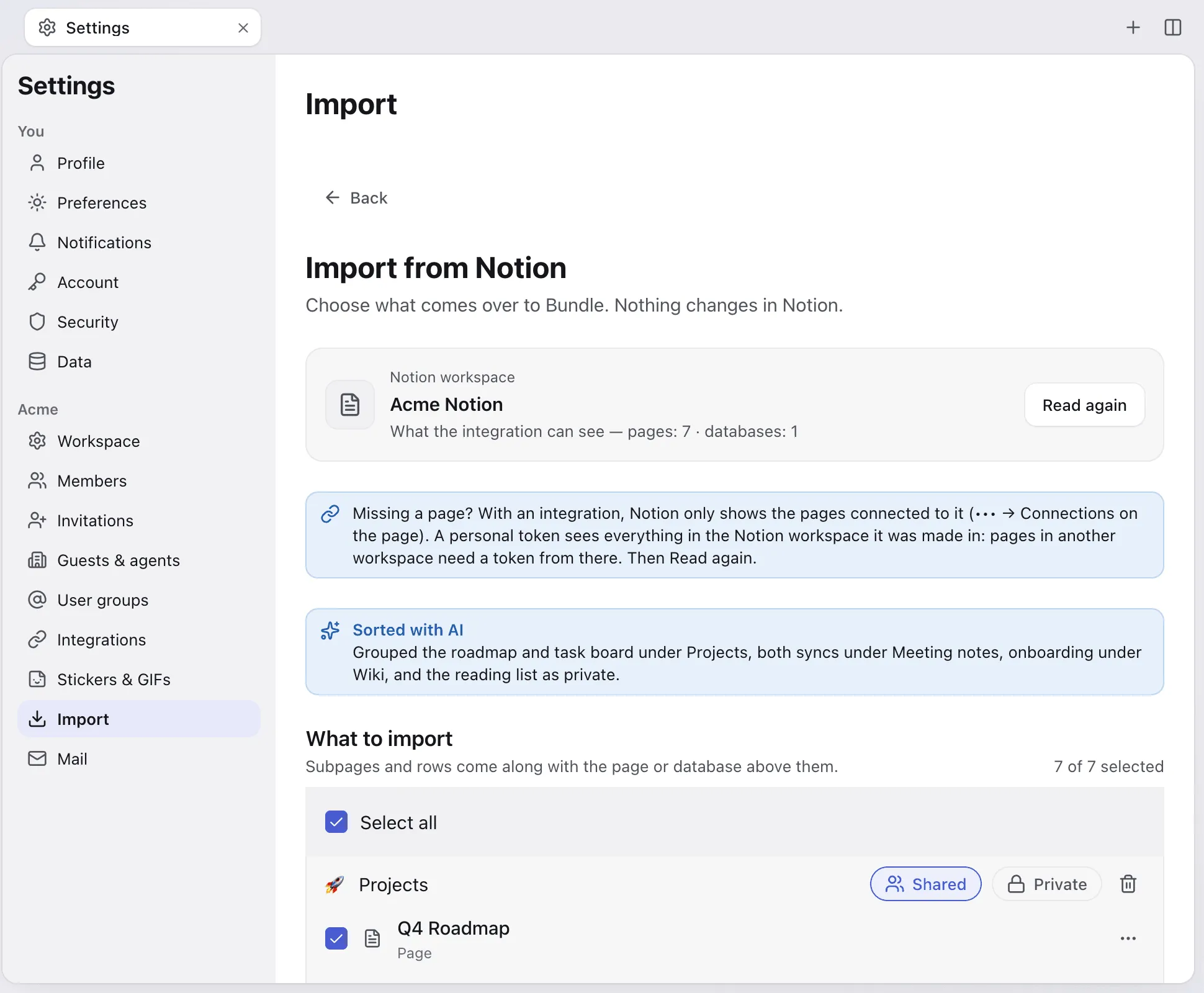
Before anything is written, Bundle shows what it found and proposes a layout:
- Sections. AI groups your top-level pages and databases into 2 to 8 sections, such as Projects, Meeting notes or Wiki. Each section becomes a top-level page in Bundle.
- Shared or private. Every section can be Shared with the workspace or Private.
- Database views. AI suggests the first view for each database (board, calendar, list or table). An “All” table view is always added.
- Better titles. Untitled or cryptic pages get a suggested title.
You can rename and remove sections, move pages between them, add a section, and untick anything you don’t want.
To sort, the AI reads titles, paths, column names and short snippets (up to 200 characters per page). It never reads whole pages. If the AI isn’t available, Bundle keeps Notion’s own layout and says so on the timeline.
What comes over
| Notion | In Bundle |
|---|---|
| Pages and nested pages | Pages, same tree; emoji icons kept |
| Databases, inline ones included | Databases with their rows and each row’s page body |
| Title, text, number (percent and currency too), select, multi-select, status, date, checkbox, URL, email, phone | Same types, select and status options keep their colors |
| Relations | Kept when the related database is imported too |
| Created / edited time and by | Automatic fields in Bundle; they show Bundle’s values, not Notion’s |
| Images and files | Copied (up to 1 GB each) |
| Toggles, callouts, code blocks, quotes, lists, to-dos, dividers | Same blocks; code keeps its language |
| Embeds, bookmarks, link previews | Embed blocks |
| Synced blocks, columns, tabs | Their content, inline, in order |
| Simple tables | Tables with plain-text cells |
| Page and database mentions | Mentions when the target is imported, links otherwise |
| Equations | LaTeX code blocks (integration); plain text (export) |
What doesn’t
- Formulas and rollups aren’t converted. With the integration they’re left out. With an export, the values Notion wrote into the CSV come over as plain columns that won’t recalculate.
- Unique IDs, buttons, verification and place properties are left out.
- People and file properties in database rows arrive empty with the integration. People mentioned in text become plain
@Name. - Comments stay in Notion.
- Subpages inside database rows are skipped with an export.
- Table of contents, breadcrumb, template and meeting-notes blocks are dropped.
- Very long pages are cut at 5,000 blocks, and text cells at 10,000 characters.
If you lean on formulas, list the ones people actually use before you import, and rebuild those afterwards. It’s usually a short list.
While it runs
The import runs in the background and logs each step on the timeline in Settings → Import. Notion’s rate limits set the pace. Stop import halts it and keeps what was already imported. Only one workspace import runs at a time, so do Slack and Notion one after the other.
When it finishes, open a couple of databases and switch views to check the columns came through as you expect. Then tell the team the docs moved.
Agent-ready version: A Markdown runbook an AI agent can follow on its own.
Keep going
-
Move your team from Slack, Notion and Google in one afternoon
A founder's plan for switching a small team to Bundle in one afternoon: what to do the day before, the order of imports, what to tell the team and how to roll back.
-
How to move from Slack to Bundle
Bring channels, DMs, threads, files and canvases from Slack to Bundle with an export zip or a read-only token. Exactly what comes over and what stays behind.