How to move Gmail and Google Workspace mail to Bundle
Import every mailbox from Google Workspace into Bundle Mail, keep new mail syncing while you switch MX records, or bring any account over IMAP.
Bundle Mail gives your team addresses on your own domain, in the same app as chat and docs. Moving from Google Workspace keeps everyone’s history: Bundle imports each person’s Gmail into their Bundle mailbox and keeps syncing new mail until you stop it. That way nothing gets lost while your DNS changes spread, and replies to old threads land in the right conversation.
Bundle Mail is in beta and turned on workspace by workspace. If you don’t see Settings → Mail, ask us to turn it on for yours.
The short version:
- Google Workspace: a super admin authorizes Bundle’s client ID once in the Google Admin console, then connects in Settings → Mail → Import mail. You choose a mailbox for each person.
- People who haven’t joined yet get a mailbox held for them. Nobody can read it until they join, and then it’s theirs.
- Any other provider (Gmail on its own, iCloud, Yahoo, Outlook.com, Zoho, UOL, Terra and others) comes over by IMAP with an app password.
- History is imported oldest first with original dates, read and starred state. New mail keeps syncing every 5 minutes until you remove the connection.
Before you start
- Add your domain. In Settings → Mail → Domains, add the domain and create the TXT record Bundle shows (
_bundle-verify). This proves you own it. Don’t change your MX records yet. - Create mailboxes for the people and shared addresses you want, or create them during the review below.
- Find a super admin. The person connecting Google must be a Google Workspace super admin, with an address on the domain you verified.
Connect Google Workspace
Google only lets an app read every user’s mailbox through a service account with domain-wide delegation. You can authorize ours in one step.
-
In the Google Admin console, go to Security → Access and data control → API controls → Manage domain-wide delegation and click Add new.
-
Client ID:
116748696740436449695. OAuth scopes:https://www.googleapis.com/auth/gmail.readonly,https://www.googleapis.com/auth/admin.directory.user.readonlyBundle can only read mail and the user directory. It can’t send, delete or change anything in Google. Google says the change can take a few minutes, sometimes longer, to apply.
-
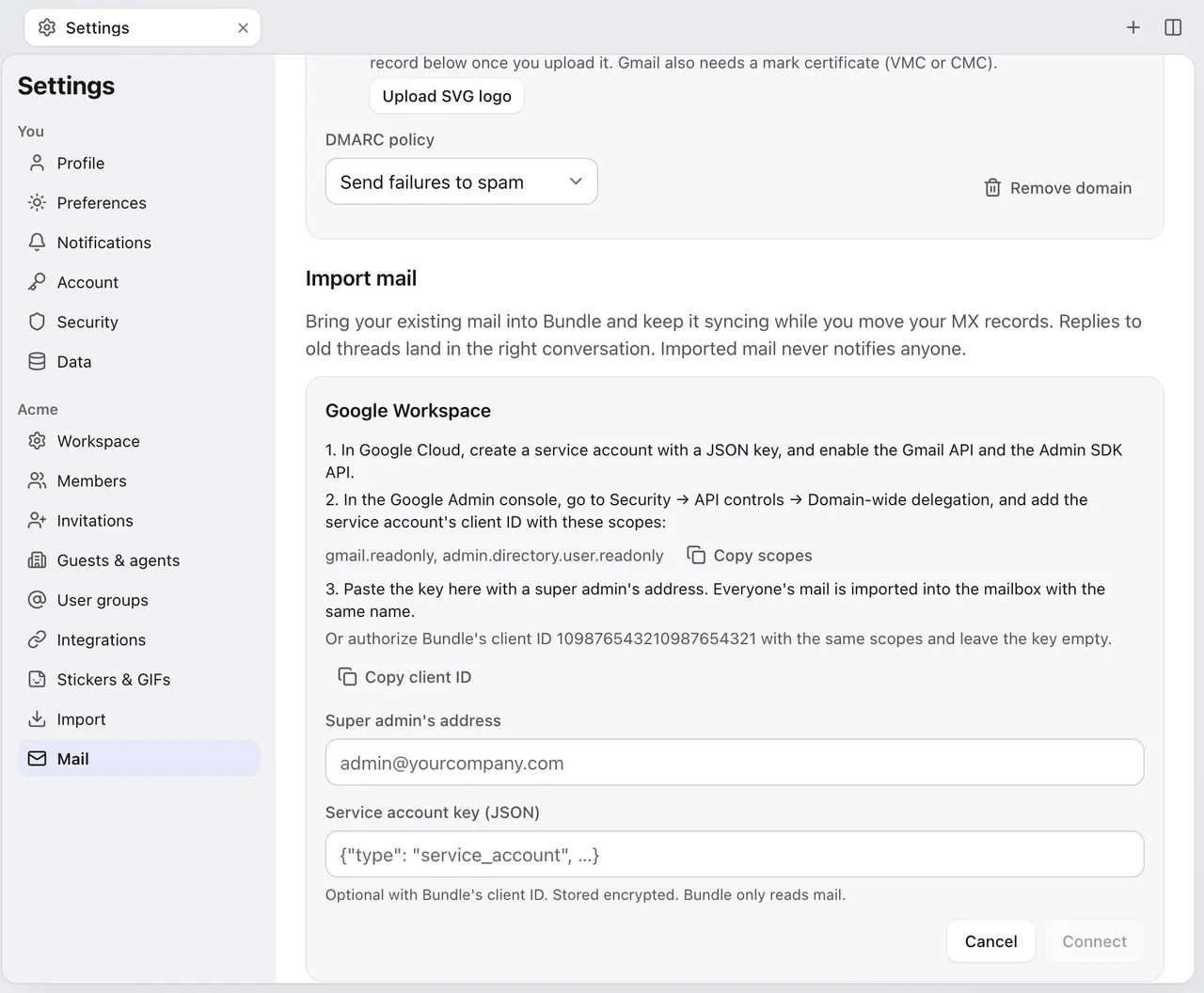
In Bundle, open Settings → Mail → Import mail → Connect Google Workspace. Enter the Super admin’s address, leave Service account key (JSON) empty, and click Connect. Bundle checks the delegation right away and tells you if something’s missing.
Prefer your own service account? Create one in your Google Cloud project with the Gmail API and the Admin SDK API turned on, add a JSON key, authorize its client ID with the same scopes, and paste the key in the form. The key is stored encrypted and never shown again.
Choose whose mail goes where
Bundle reads your Google directory and stops at Choose whose mail to import. Nothing is imported until you start.
For each person you pick:
- An existing mailbox, proposed when the address or name matches.
- New mailbox with their address. If they’re already a member, it’s their own. If they haven’t joined Bundle yet, the mailbox is held for them and nobody can read it. When they join (by invite or by your email domain), it becomes their personal mailbox.
- Don’t import to skip them.
Then click Import N people. If you skipped someone because they had no mailbox yet, Bundle starts their import on its own once a matching mailbox appears (it checks every 10 minutes), unless you chose Don’t import.
What comes over
| In Gmail | In Bundle |
|---|---|
| Inbox | Inbox |
| Sent | Sent, as that person’s messages |
| Archived mail and anything with a user label | Archive |
| Spam, Trash | Spam, Trash |
| Unread, starred | Unread, starred |
| Drafts | Not imported |
| User labels | Not kept |
Threads are rebuilt from the message headers, so a reply joins its conversation. Attachments come with their messages, including Gmail messages over 24 MB.
Imported history never sends notifications. Bundle sorts it into your inbox tabs with the same rules as new mail; the AI sorter only looks at the last 30 days of inbox history, up to 200 messages per person, so a big import doesn’t cost a fortune.
Expect roughly 5 to 10 messages a second per connection. A mailbox with 100,000 messages takes a few hours. Bundle never marks anything as read in Gmail.
Switch your MX records
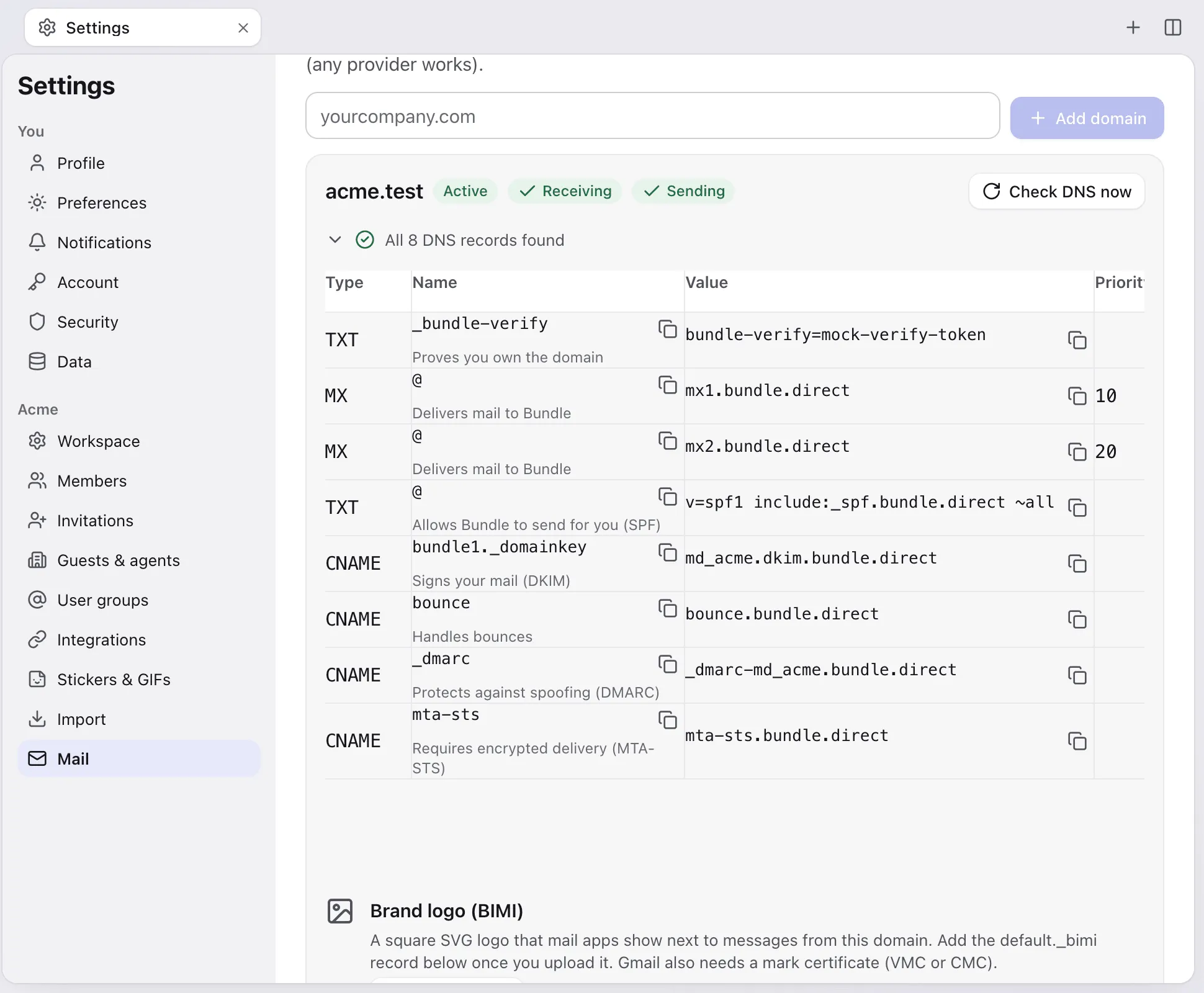
Once the history has caught up, point your domain at Bundle. The records are listed in Settings → Mail → Domains, with Check DNS now and Download zone file:
| Type | Name | Value |
|---|---|---|
| TXT | _bundle-verify |
the token Bundle shows |
| MX | @ |
mx1.bundle.direct (priority 10) |
| MX | @ |
mx2.bundle.direct (priority 20) |
| TXT | @ |
v=spf1 include:_spf.bundle.direct ~all (merge with any SPF you keep) |
| CNAME | bundle1._domainkey |
the DKIM target Bundle shows |
| CNAME | bounce |
bounce.bundle.direct |
| CNAME | _dmarc |
the DMARC target Bundle shows |
Remove Google’s old MX records, the old SPF include and your old _dmarc record. Before you change anything, save a copy of your current zone so you can put it back.
Keep the Google connection running for a few days after the switch. Mail that still reaches Google while DNS changes spread keeps syncing into Bundle. When nothing new arrives, click Remove on the connection. The imported mail stays. Then delete the delegation entry in the Google Admin console.
Any other provider: IMAP
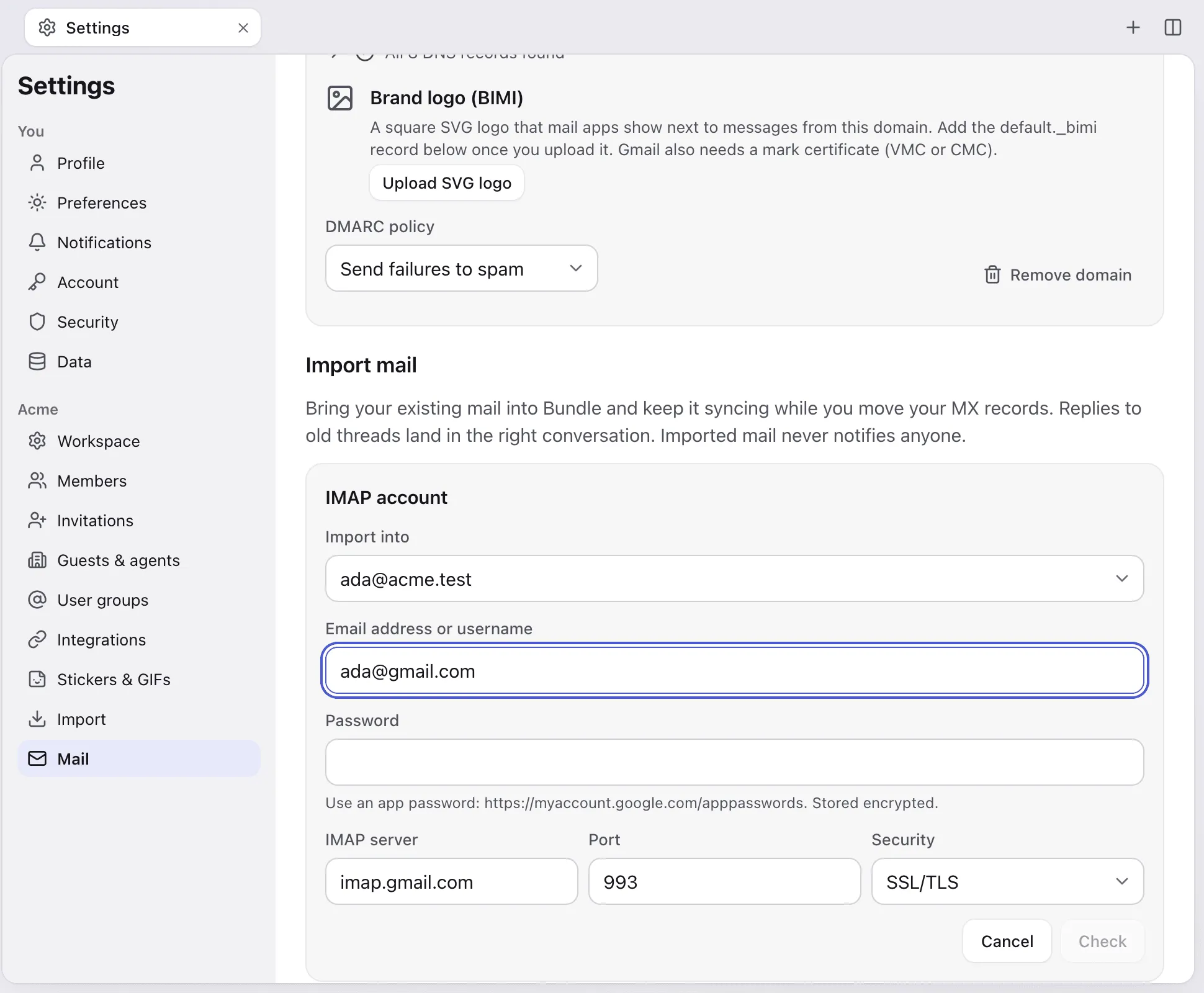
Admins, or any member of the target mailbox, can add an IMAP account:
- In Settings → Mail → Import mail, click Add IMAP account and pick the mailbox to import into.
- Enter the address. Gmail, Outlook/Hotmail, iCloud, Yahoo, Zoho, UOL and Terra fill in the server, port 993 and SSL/TLS.
- Enter an app password. With two-step verification on, most providers require one. For Gmail, create it at myaccount.google.com/apppasswords.
- Click Check. Bundle logs in and lists the folders with their sizes. Untick any you don’t want (Drafts is off by default), then Start import.
Folders map like Gmail’s: Inbox to Inbox, Sent to Sent, Junk to Spam, Trash to Trash, and every other folder to Archive.
Microsoft 365 work accounts may have IMAP turned off by your company’s admin, and Bundle doesn’t support Microsoft sign-in (OAuth) for IMAP yet. If IMAP works for your account, enter the server by hand (outlook.office365.com, port 993, SSL/TLS). IMAP messages over 24 MB are skipped and counted as failed.
Good to know
- Changes you make in Gmail after the import (archiving, deleting, reading) don’t sync over. Only new mail does.
- Pause and Resume are on each connection. A wrong or revoked password puts it in Needs attention with the reason; enter a new one to continue.
- A workspace can have up to 200 connections, 10 per mailbox.
Agent-ready version: A Markdown runbook an AI agent can follow on its own.
Keep going
-
Move your team from Slack, Notion and Google in one afternoon
A founder's plan for switching a small team to Bundle in one afternoon: what to do the day before, the order of imports, what to tell the team and how to roll back.
-
How to move from Slack to Bundle
Bring channels, DMs, threads, files and canvases from Slack to Bundle with an export zip or a read-only token. Exactly what comes over and what stays behind.