Use Bundle Mail in iPhone Mail, Mac Mail and Outlook
Set up Bundle Mail in Apple Mail, Outlook or Thunderbird with an app password: the one-tap iPhone and Mac profile, or the IMAP and SMTP settings by hand.
Some people on your team will want their mail in the app they’ve used for ten years. That’s fine. Bundle Mail speaks IMAP and SMTP, so iPhone Mail, Mac Mail, Outlook and Thunderbird can read and send from your Bundle mailboxes. Everything stays in sync with Bundle, because Bundle is still the only place your mail is stored.
Bundle Mail is in beta and turned on workspace by workspace. If you don’t see Settings → Mail, ask us to turn it on.
Create an app password
Mail apps sign in with an app password, never your Bundle sign-in.
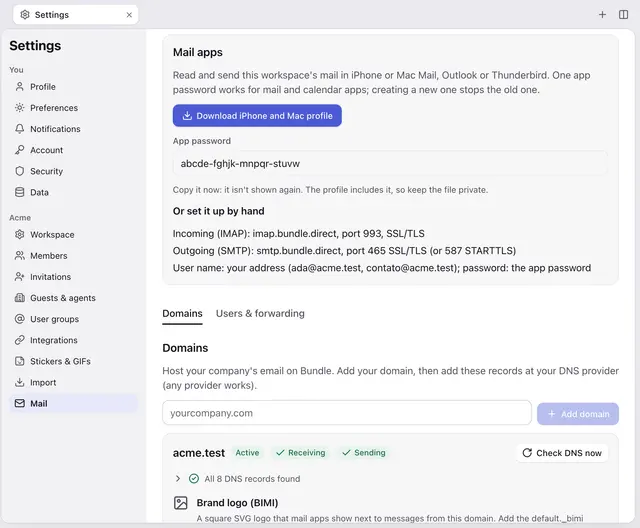
- In Bundle on the web, open Settings → Mail and find Mail apps.
- Click Create app password.
- Copy it now. It’s shown once and Bundle only keeps a fingerprint of it.
Things to know about this password:
- One per device or app. Each password opens every mailbox you’re a member of in that workspace; the user name you type picks which one.
- Calendar and contacts apps take it too. A password made in Calendar works for mail as well, and the other way round.
- Creating a new one doesn’t stop the others. Setting up your phone leaves your Mac signed in.
iPhone and Mac: the one-tap profile
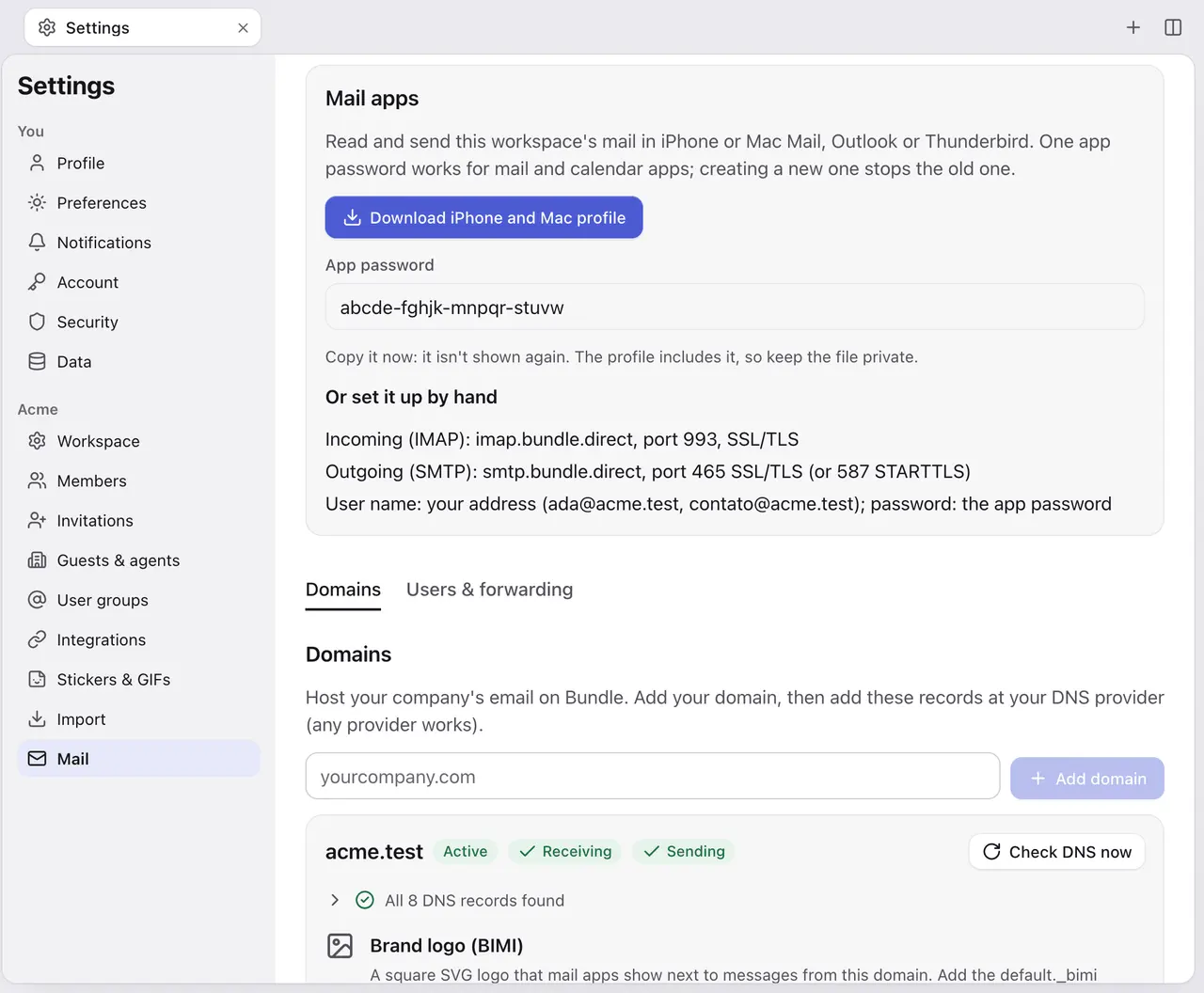
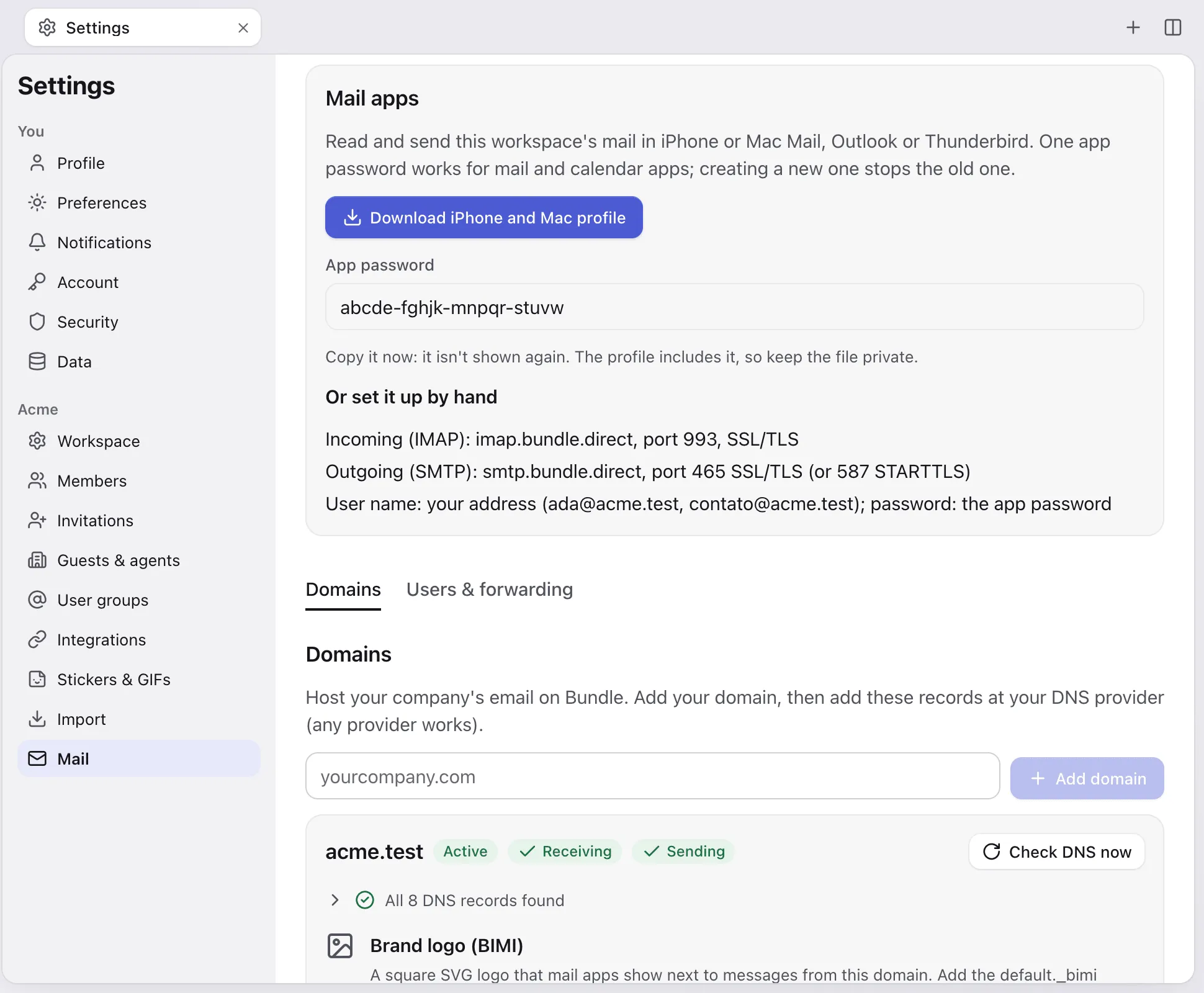
Right after you create the password, Download iPhone and Mac profile appears. The profile sets up every mailbox you belong to (IMAP and SMTP) and your Bundle calendar (CalDAV) in one go.
- Download the profile on the device, or AirDrop it there. It’s named
Bundle-<workspace>.mobileconfig. - iPhone: open Settings, tap Profile Downloaded near the top, then Install and confirm.
- Mac: double-click the file, then open System Settings, search for Profiles and click Install.
- Open Mail. Your Bundle mailboxes are there, and your events show in Calendar.
The profile contains your app password. Keep the file private and delete it after installing. You can remove the profile any time from the same place in Settings.
The button only appears right after creating a password. To get a profile later, create a new password; your mail and calendar apps will then need the new one.
Any app: the settings by hand
| Setting | Value |
|---|---|
| Incoming (IMAP) | imap.bundle.direct, port 993, SSL/TLS |
| Outgoing (SMTP) | smtp.bundle.direct, port 465 SSL/TLS (or 587 STARTTLS) |
| User name | your mailbox address, like ana@yourcompany.com (an alias works too) |
| Password | the app password |
Outlook: add an account with your mailbox address, choose IMAP when Outlook asks for the account type (look under advanced or manual setup), and enter the settings above for both servers.
Thunderbird: add a mail account, choose Configure manually, and enter the same settings. Use “Normal password” as the authentication method.
Shared mailboxes like hello@ work the same way: add a second account with that address as the user name and the same app password, as long as you’re a member of that mailbox.
How Bundle looks in a mail app
Bundle keeps mail as conversations, the way Gmail does, and mail apps see it like this:
- Folders: Inbox, Archive, Sent, Drafts, Junk and Trash. Labels show up as folders under
Labels/. Copying a message into one adds the label. - Read and starred belong to the whole conversation. Reading one message in a thread marks the thread read in Bundle.
- Moving a message moves its whole conversation. Deleting moves it to Trash; deleting from Trash removes it for good.
- New mail arrives live (IMAP IDLE), and search matches words in the sender, recipients, subject and body.
Mail you send from a mail app goes out the same way as mail sent in Bundle and is saved in Sent. You can only send from the mailbox you signed in with or one of its aliases.
Limits
- 25 MB per message.
- Per mailbox, per day: 2,000 messages and 10,000 recipients; 500 recipients per message.
- Sign-in is by app password only. Microsoft-style “modern” sign-in (OAuth) isn’t supported.
- Repeated wrong passwords slow down and then block further attempts for a while.
Revoke access
If a phone is lost or someone leaves, create a new app password in Settings → Mail → Mail apps. Every app using the old one is signed out at once. Turning off CalDAV in Calendar → Sync with your phone → Turn off also deletes the shared password, which stops mail apps too.
Agent-ready version: A Markdown runbook an AI agent can follow on its own.
Keep going
-
How to move Gmail and Google Workspace mail to Bundle
Import every mailbox from Google Workspace into Bundle Mail, keep new mail syncing while you switch MX records, or bring any account over IMAP.
-
How to connect Bundle to your iPhone or Android: contacts, calendar and email
Add Bundle mail, calendar and contacts to the iPhone's built-in apps, the Gmail app or DAVx⁵ on Android, with the settings to copy.