How to connect Bundle to your iPhone or Android: contacts, calendar and email
Add Bundle mail, calendar and contacts to the iPhone's built-in apps, the Gmail app or DAVx⁵ on Android, with the settings to copy.
The easiest way to use Bundle on a phone is the Bundle app for iPhone or Android. Sign in and your mail, calendar and contacts are there, with nothing to set up. The app can also put your Bundle events into the phone’s own calendar.
Some people would rather keep using the phone’s built-in Mail and Calendar apps, or the Gmail app. This guide is for them. It covers what works today on each platform and the settings to type in.
Mail and Calendar are in beta and turned on workspace by workspace. If you don’t see Settings → Mail or Calendar in Bundle, ask us to turn them on.
What works today
| iPhone | Android | |
|---|---|---|
| Built-in Mail app (IMAP and SMTP) | Gmail app, Thunderbird or K-9 Mail (IMAP and SMTP) | |
| Calendar | Built-in Calendar app (CalDAV), two-way | DAVx⁵ (CalDAV), two-way, into any calendar app |
| Contacts | Built-in Contacts app (CardDAV), two-way | DAVx⁵ (CardDAV), two-way, into the phone’s contacts app |
Contacts sync both ways for the contacts saved in Bundle: add, edit or delete one on the phone and Bundle follows. Your workspace’s people are there too, read-only, with the name and email from their Bundle profile. Contacts Bundle only picked up from mail stay off the phone until someone saves them.
Step 1: create an app password
Phone apps never use your Bundle sign-in. They use an app password, and one password covers mail, calendar and contacts.
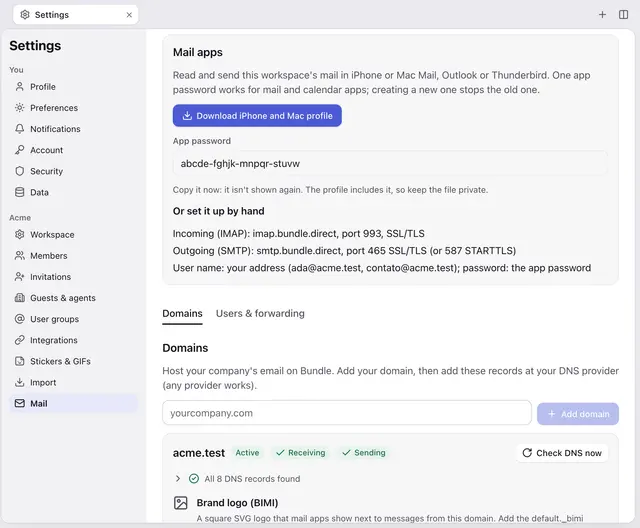
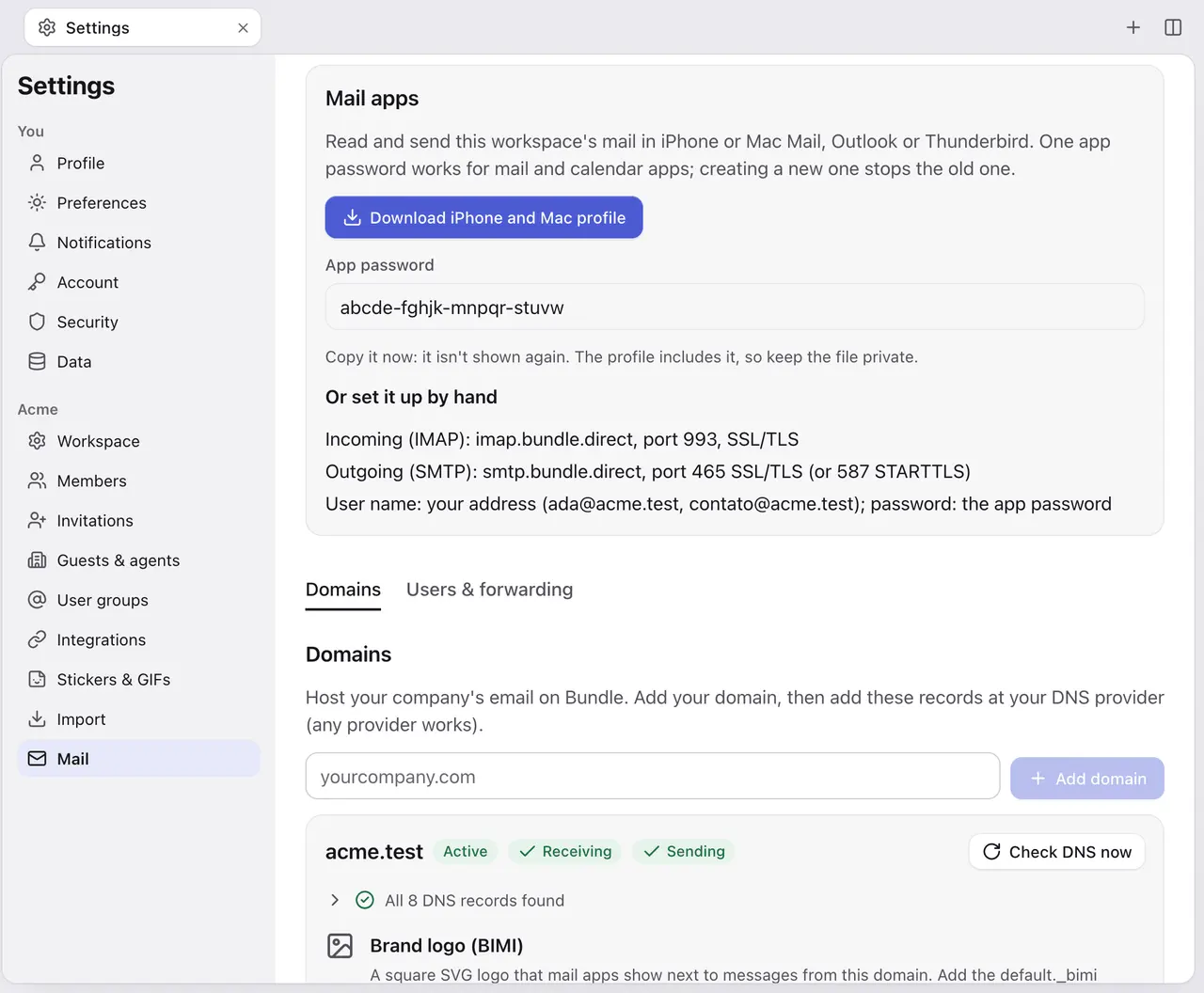
- In Bundle on the web, open Settings → Mail and find Mail apps.
- Click Create app password.
- Copy it right away. It’s shown once.
You can also create it from Calendar → Sync with your phone → Create app password. Either one works for mail, calendar and contacts. Make one per device: a new one doesn’t stop the others.
The settings to copy
| What | Value |
|---|---|
| Incoming mail (IMAP) | imap.bundle.direct, port 993, SSL/TLS |
| Outgoing mail (SMTP) | smtp.bundle.direct, port 465 SSL/TLS, or port 587 STARTTLS |
| Mail user name | your mailbox address, like ana@yourcompany.com |
| Calendar server (CalDAV) | app.bundle.direct (full URL: https://app.bundle.direct/dav/) |
| Contacts server (CardDAV) | app.bundle.direct (full URL: https://app.bundle.direct/dav/) |
| Calendar and contacts user name | the email you sign in to Bundle with |
| Password (all) | the app password |
The user names can be different. Mail uses the mailbox address. Calendar and contacts use the address you sign in to Bundle with.
iPhone
The shortcut: one profile for mail, calendar and contacts
Right after you create the app password in Settings → Mail → Mail apps, a Download iPhone and Mac profile button appears. The profile adds every mailbox you belong to, your Bundle calendar and your workspace’s contacts in one go.
- Download the profile on the iPhone, or AirDrop it there.
- Open Settings and tap Profile Downloaded near the top.
- Tap Install and confirm.
The profile contains your app password, so delete the file once it’s installed. If you’d rather add the accounts yourself, follow the steps below. The menu names are from iOS 27.
- Open Settings, tap Apps, then Mail.
- Tap Mail Accounts, then Add Account.
- Tap Add Other Account, then Mail Account.
- Enter your name, your mailbox address, the app password and a description like “Bundle”. Tap Next.
- Choose IMAP.
- Under Incoming Mail Server, enter host name
imap.bundle.direct, your mailbox address as the user name, and the app password. - Under Outgoing Mail Server, enter host name
smtp.bundle.directwith the same user name and password. - Tap Next, leave Mail on, and tap Save.
For a shared mailbox like hello@, add a second account with that address as the user name and the same app password. You need to be a member of that mailbox in Bundle.
Calendar
- Open Settings, tap Apps, then Calendar.
- Tap Calendar Accounts, then Add Account.
- Tap Add Other Account, then CalDAV Account.
- Server:
app.bundle.direct. User name: the email you sign in to Bundle with. Password: the app password. - Tap Next, leave Calendars on, and tap Save.
Your Bundle events show up in the Calendar app. Events you add or change there go back to Bundle. Only the organizer can change an event, and deleting an invitation declines it.
Contacts
- Open Settings, tap Apps, then Contacts.
- Tap Contacts Accounts, then Add Account.
- Tap Add Other Account, then CardDAV Account.
- Server:
app.bundle.direct. User name: the email you sign in to Bundle with. Password: the app password. - Tap Next, leave Contacts on, and tap Save.
Your Bundle contacts show up in the Contacts app as their own list. On a Mac, it’s System Settings → Internet Accounts → Add Other Account → CardDAV Account, with the same details.
Numbers, addresses, photos and notes you add on the phone are kept. A contact needs an email address to be saved in Bundle, so a phone-only contact can’t go in the Bundle list, and contact groups aren’t supported yet.
Android
Android has a built-in way to add mail accounts, but none for CalDAV or CardDAV. For the calendar and contacts you need a small app, DAVx⁵.
Mail in the Gmail app
- Open the Gmail app and tap your profile picture at the top right.
- Tap Add another account, then Other.
- Enter your mailbox address and tap Next.
- Choose Personal (IMAP).
- Enter the app password and tap Next.
- Incoming server:
imap.bundle.direct, port 993, security type SSL/TLS. User name: your mailbox address. - Outgoing server:
smtp.bundle.direct, port 465, security type SSL/TLS. Same user name and password. - Finish the remaining screens. Your Bundle mail shows up as its own account in Gmail.
Mail in Thunderbird or K-9 Mail
Thunderbird for Android grew out of K-9 Mail, and both set up the same way. Add an account with your mailbox address. If the app doesn’t fill in the servers, choose manual setup and enter the settings from the table above. Use “Normal password” for authentication.
Calendar and contacts with DAVx⁵
DAVx⁵ connects Android’s calendar and contacts to Bundle. After that, your Bundle calendar shows up in Google Calendar, Samsung Calendar or whatever calendar app you use, and your Bundle contacts in the phone’s contacts app. It’s free on F-Droid and costs a few euros on Google Play.
- Install DAVx⁵ and open it.
- Tap the + button, then Login with URL and user name.
- Base URL:
https://app.bundle.direct/dav/. User name: the email you sign in to Bundle with. Password: the app password. - Tap Login. When DAVx⁵ asks for an account name, use your email address.
- Allow calendar and contacts access when Android asks.
- Open the new account. On the CalDAV tab, tick your Bundle calendar. On the CardDAV tab, tick the Bundle address book.
- Open your calendar app. If the calendar doesn’t show, turn it on in the app’s list of calendars. The contacts appear in your contacts app under the DAVx⁵ account.
Changes go both ways, with the same rules as on iPhone.
Troubleshooting
“Wrong password” or the app keeps asking for it. Create a new app password in Settings → Mail → Mail apps and enter it in every app. Also check the user name: mail wants the mailbox address, calendar and contacts want your Bundle sign-in email.
Sign-in got slow or stopped working after a few tries. Bundle slows down repeated wrong passwords and then blocks them for a while. Wait a bit, then try again with the right password.
Nothing syncs. Check that the account is turned on:
- iPhone: Settings → Apps → Mail → Mail Accounts, tap the account and make sure Mail is on. For the calendar, Settings → Apps → Calendar → Calendar Accounts, tap the account and make sure Calendars is on. For contacts, the same under Settings → Apps → Contacts → Contacts Accounts.
- Android: in DAVx⁵, open the account and make sure the Bundle calendar is ticked under CalDAV and the address book under CardDAV. In your calendar app, make sure that calendar is shown.
I can’t send from an address. You can only send from the mailbox you signed in with, or one of its aliases.
I can’t edit an event. Only the organizer can change an event, the same as in Bundle.
I can’t change someone from my team. Your workspace’s people come from their Bundle profiles, so they’re read-only on the phone. Contacts you saved can be changed.
A new contact didn’t stay. It needs an email address, and each address can be in the list only once.
Or skip all this
The Bundle app for iPhone and Android has mail, calendar and contacts built in, with no passwords or servers. If you also want your Bundle events in the phone’s calendar, open the Bundle app, go to Settings → Calendar and turn on Sync with iPhone Calendar or Sync with phone calendar.
For more on mail apps on a Mac and in Outlook, see Use Bundle Mail in iPhone Mail, Mac Mail and Outlook. For the calendar subscription link and Google Calendar, see Bring your calendar.
Agent-ready version: A Markdown runbook an AI agent can follow on its own.
Keep going
-
How to move Gmail and Google Workspace mail to Bundle
Import every mailbox from Google Workspace into Bundle Mail, keep new mail syncing while you switch MX records, or bring any account over IMAP.
-
Use Bundle Mail in iPhone Mail, Mac Mail and Outlook
Set up Bundle Mail in Apple Mail, Outlook or Thunderbird with an app password: the one-tap iPhone and Mac profile, or the IMAP and SMTP settings by hand.